¶ Extracting Virtual Textures with LSLIB
Many/most equipment and skin textures are stored as virtual textures and will require extraction if we wish to edit them.
This tutorial will use the skin textures for the BT1 elf/human/halfelf body (HUM_F_/NKD_Body_A). The principle is the same for equipment as well.
NOTE: While the Modder’s Multitool does have this functionality, sometimes there are errors in extracting or even finding them. If that is the case, or if you are unsure about artefacts, this is the way to do it directly.
¶ 1) Find the material assigned to that mesh
We will be using Norbyte’s BG3 search
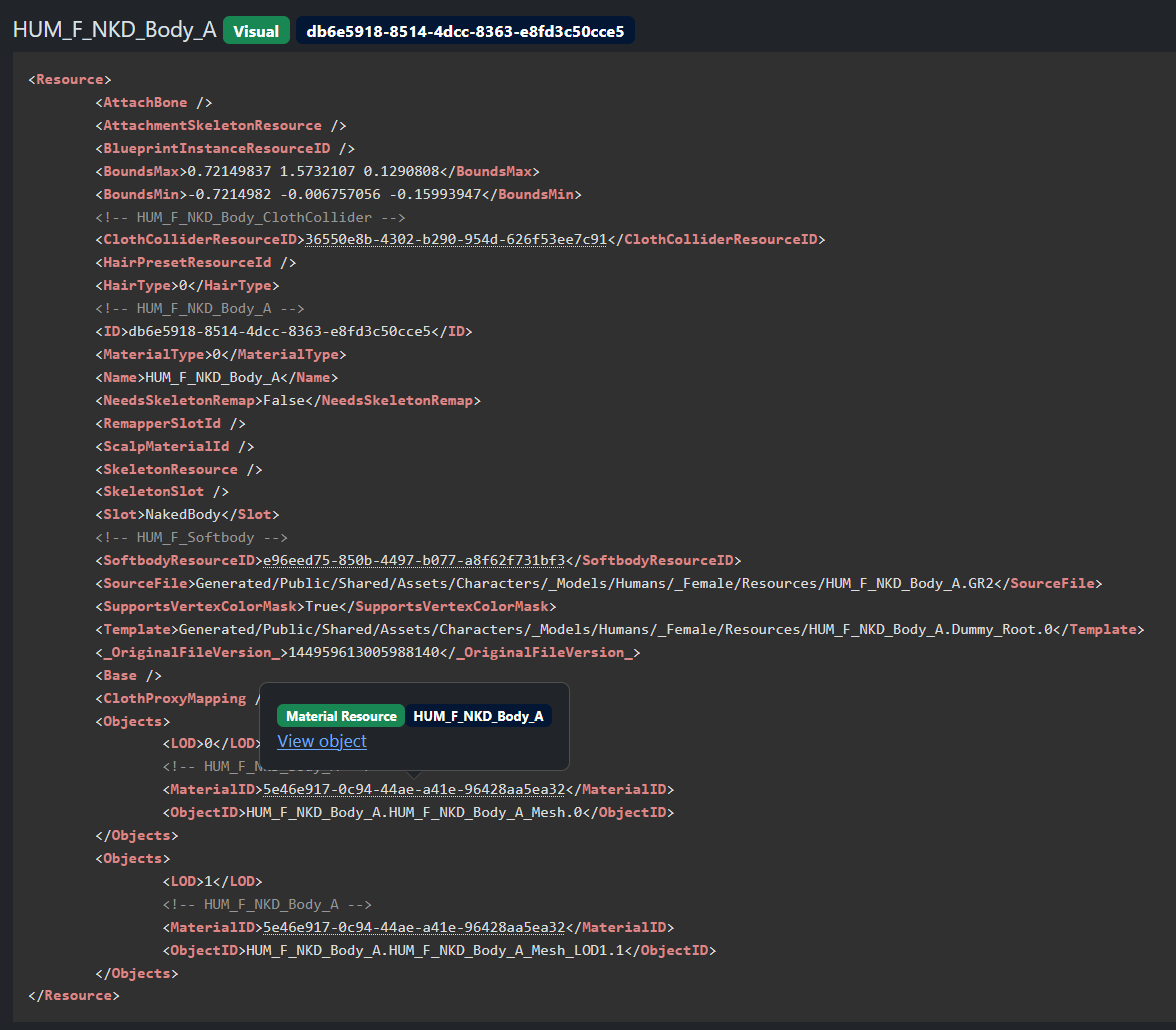
We will follow a patch of breadcrumbs from mesh name to the virtual texture name, starting with our mesh name
HUM_F_NKD_Body_A
There will be some results and for the purpose of this tutorial we are looking for the one labeled “VISUAL”
Scroll down to where the materials are assigned and click on the UUID -> View object to open in a new tab:
¶ 2) Find the virtualtexture
So now we have the MaterialResource opened, and usually the virtual texture entry is at the very bottom, under <VirtualTextureParameters>:
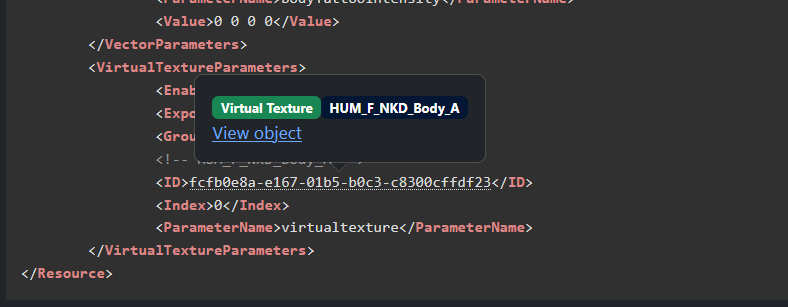
again, click the UUID and open in a new tab.
¶ 3) Make note of the important info
What we need to exact the textures are 2 things:
- GTexFileName
- Tileset/gts
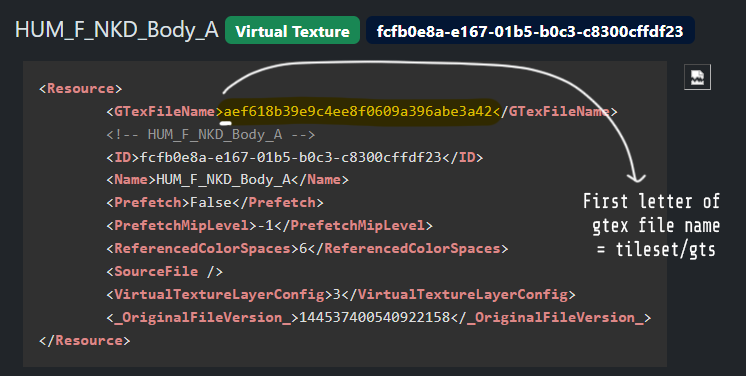
The GTexFileName is simple, the highlighted UUID. The gts/tileset will be the first letter of that UUID. Unpacked, they are labeled hexidecimally:
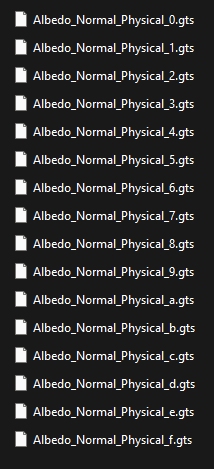
NOTE: You will need to extract the virtual texture pak first to access these gts files. It will take up quite some space once unpacked, so keep that in mind.
¶ 4) Extract VirtualTextures.pak
Once extracted, this will take up nearly 80GB of space so take care.
Find the file VirtualTextures.pak in your game directory, in Data (there are a number of them, we only need this one specifically).
- This path goes in
Package pathin LSLIB. - For Destination path, choose/make a folder to store the extracted contents.
.png)
¶ 5) Extract the actual textures out of the gts/gtp files
Now we plug the info we got in Step 3, like so:
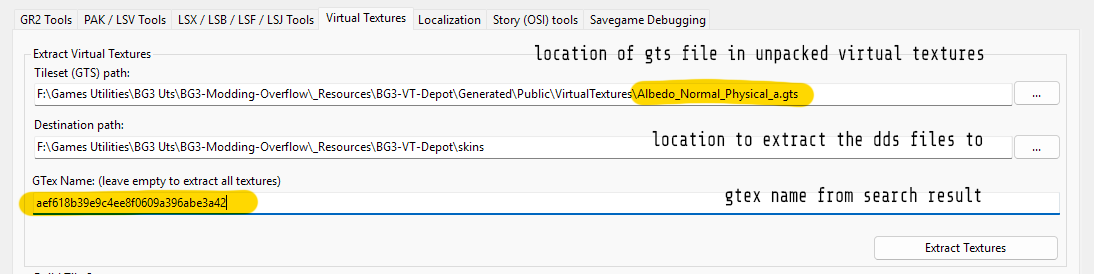
Click “Extract Textures” and the dds image textures will be extracted into the destination folder, for example:
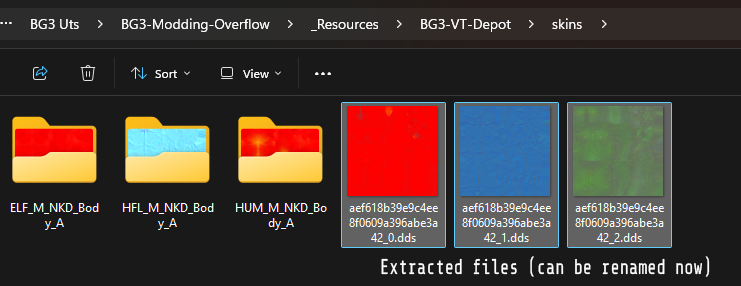
From here they can be renamed, edited, etc.