¶ Vertex Paint Colors
Due to a colour space conversion when exporting via glTF from Blender, the colours used to vertex paint the mesh must be adjusted so that their value after the conversion is correct. The adjusted values are given in the table below.
If you export using the option
DOS/BG3 via Collada (dae, .gr2), use the values given in the column “Blender Hex (via Collada)”. If you export using the optionDOS/BG3 via glTF (.gr2), use the adjusted values in the column “Hex (via glTF)”.If you find that any of the adjusted values for glTF do not work, feel free to ping baeator in the CMTY Discord server. Due to rounding in the colour space conversions being made, there may be additional hex codes that work for various slots.
| MapKey | Hex | Blender Hex (via Collada) [1] | Hex (via glTF) [2] |
|---|---|---|---|
| “ModestyLeaf” | #000500 | #010501 | #002600 |
| “Sleeves” | #000A00 | #010A01 | #003800 |
| “knees” | #000F00 | #010F01 | #004500 |
| “Pants” | #001400 | #011401 | #004F00 |
| “Dragonborn Attachments” | #001900 | #011901 | #005800 |
| “Shoulders” | #001E00 | #011E01 | #006000 |
| “shins” | #002400 | #012401 | #006900 |
| “Private_Parts” | #002800 | #012801 | #006F00 |
| “Nipple Covers” | #002D00 | #012D01 | #007500 |
| “Torso” | #003200 | #013201 | #007B00 |
| “wrists” | #003A00 | #013A01 | #008300 |
| “upperarm” | #004100 | #014101 | #008A00 |
| “lowerarm” | #005000 | #015001 | #009800 |
| “hands” | #005F00 | #015F01 | #00A500 |
| “decolletage_01” | #006E00 | #016E01 | #00B000 |
| “decolletage_02” | #008200 | #018201 | #00BE00 |
| “feet” | #009600 | #019601 | #00CA00 |
| “Underwear_Bra” | #00A000 | #01A001 | #00D000 |
| “Underwear_Panties” | #00AA00 | #01AA01 | #00D600 |
| “Thighs” | #00B900 | #01B901 | #00DE00 |
| “Underwear_Panties_Tail” | #00C300 | #01C301 | #00E300 |
Blender gamma corrects the values by setting the values of the R and B components to 01. You can use either hex value in the table as only the green channel is used by the vertcut shaders. Red and Blue affect cloth physics.
Same applies for values in the Hex via glTF column. As long as the G component (middle 2 characters) are correct, it is fine if the R and/or B components are 01.
¶ Vertex Paint Transfer
You’ll need an object with colors, and the object without colors that you want to transfer to.
You’ll need to select your color mesh first and then the non color mesh, then press F3 and search Transfer Mesh Data.
Then select face corner colors.
You should now see a new color attribute on the non color mesh with the vertex colors.
Then there should be two entries in Color Attributes, the old one with nothing (delete it), and the new one.

If the two meshes you are transferring between are significantly different, you will probably need to clean up the vertex paint manually, as any blurred edges will end up sticking to the ground in game.
¶ Manually Applying Vertex Paint (Or Cleaning It Up)
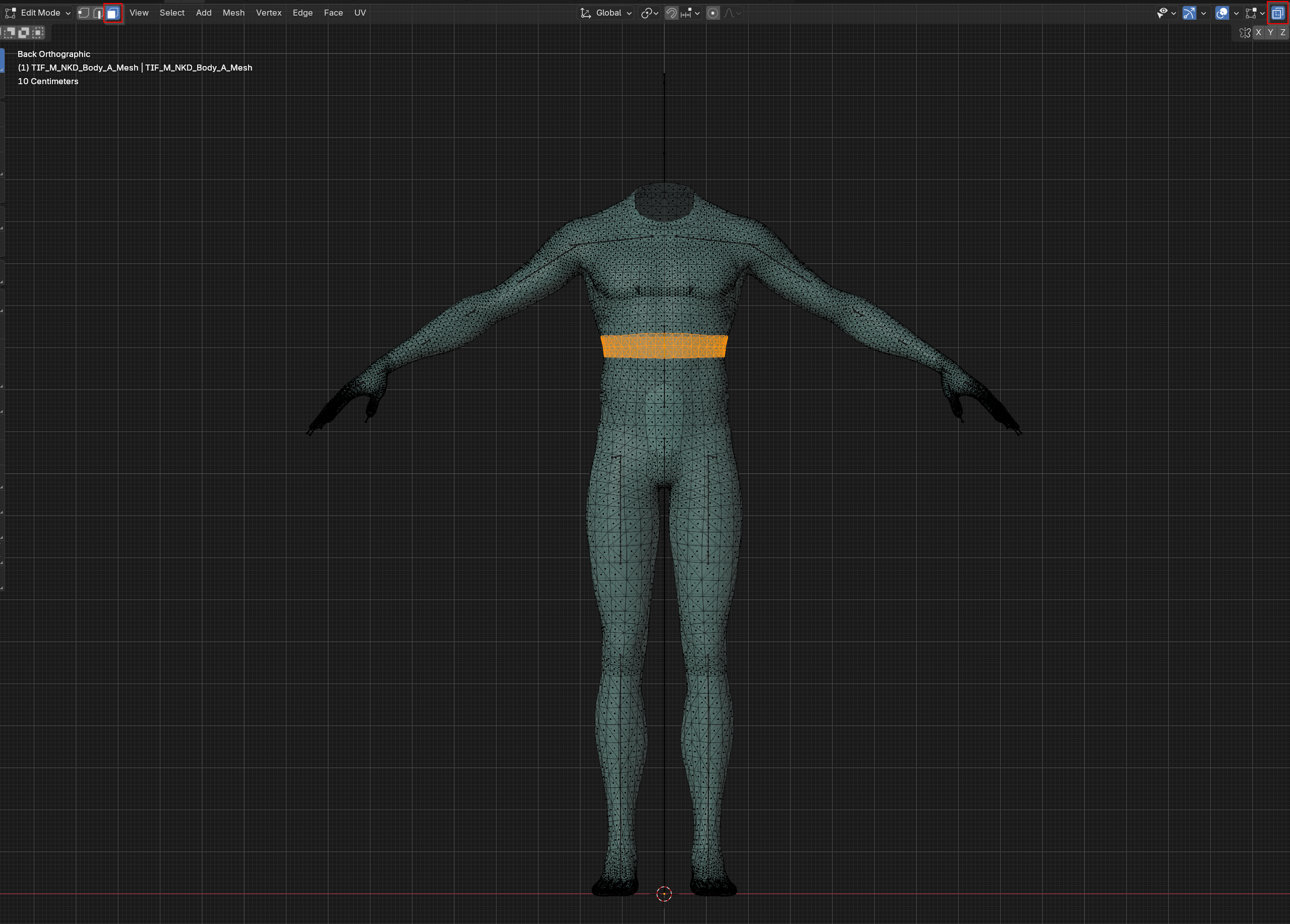
First, enter edit mode, enable X-Ray mode, and select all of the faces you wish to apply vertex paint to.
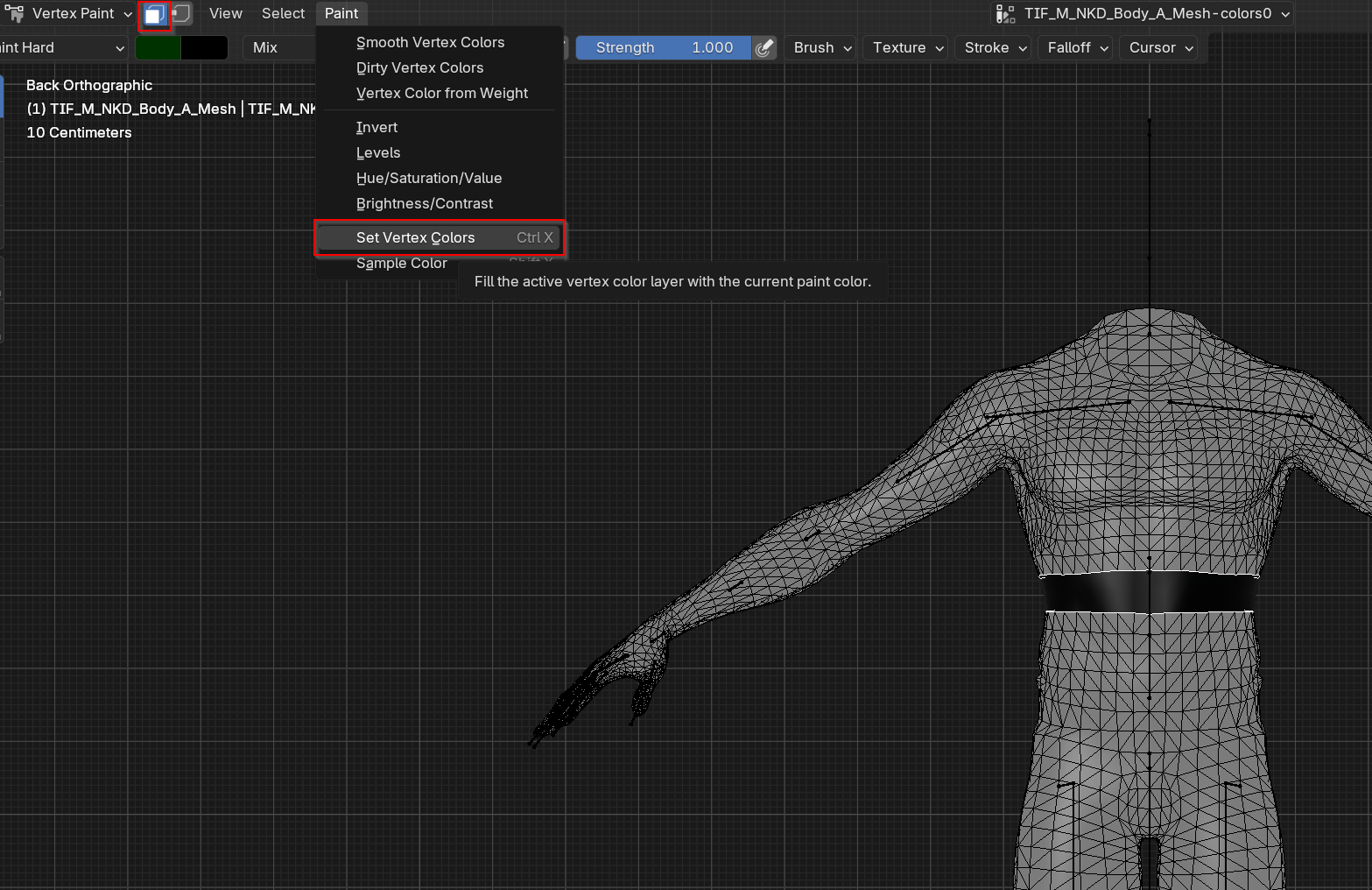
Then switch to vertex paint mode. After selecting your color, enable Paint Mask on the top left, and then open the Paint menu and hit Set Vertex Colors.
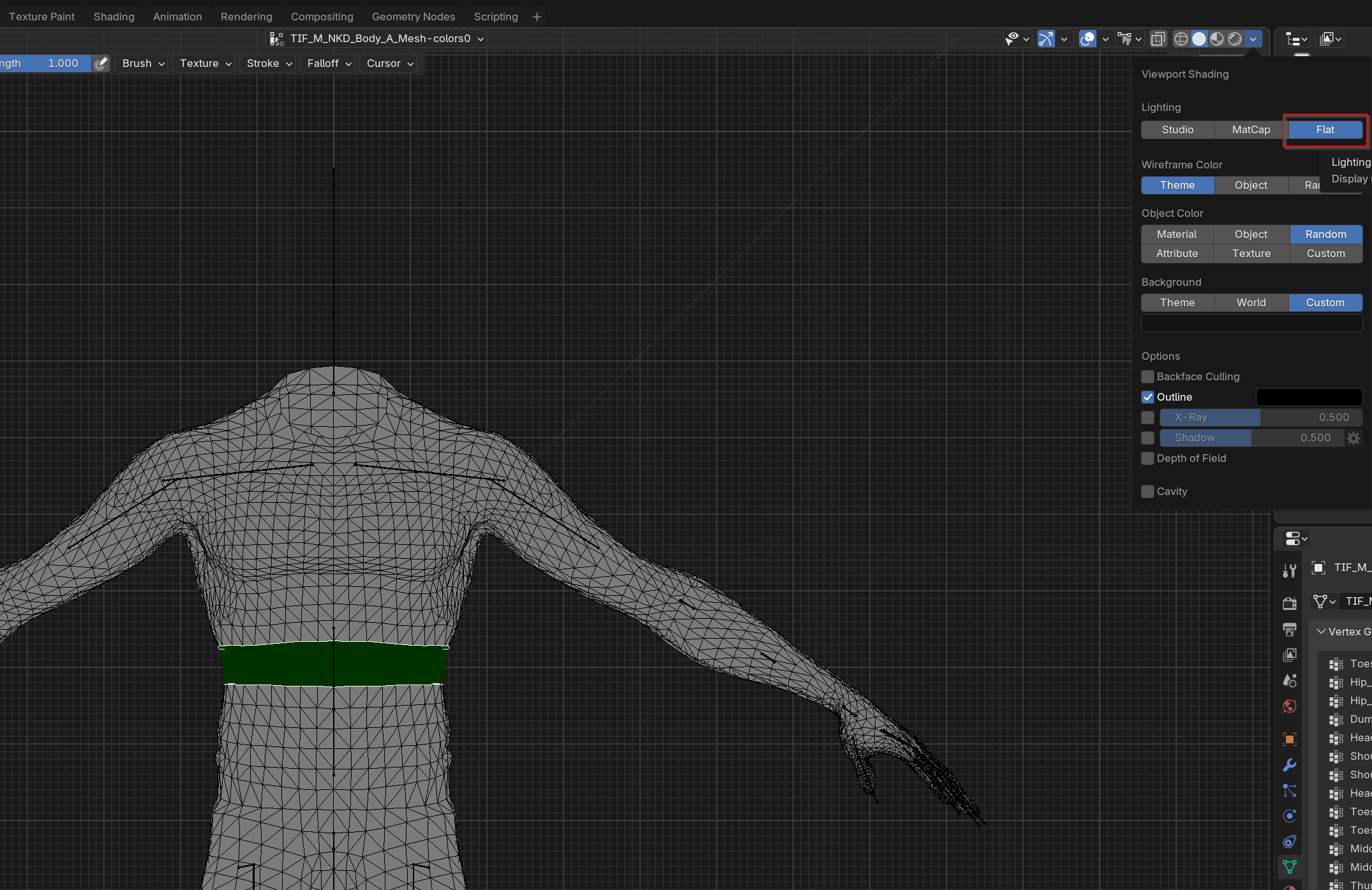
The faces you selected will now be colored cleanly. You can turn on Flat shading to see it more clearly.
¶ Troubleshooting
If your vertex paint still doesn’t work in game…
- Make sure you are using a VertCut compatible shader. Usually, compatible shaders will have
VertCutin the name. - Make sure the
SupportsVertexColorMaskline in your VisualBank mesh definition is set toTrue. - Make sure you copied the correct hex code from this article and then flood-filled it in Blender. Color picking from other painted meshes doesn’t seem to work.
If you have vertices that are “stuck to the ground”…
- You probably have vertices that are painted a color that is in-between two of the game values, such as if you painted with a soft brush. BG3 doesn’t know how to handle these colors, so it basically puts them on the ground. To avoid this, use the aforementioned method of selecting faces in Edit Mode and then using Set Vertex Colors to fill the faces cleanly.